SEO guide
How to Use Google Keyword Planner for SEO: A Practical Beginner’s Guide
A practical beginner’s guide to using Google Keyword Planner for SEO, including keyword discovery, search-volume interpretation, filtering, website-based research, and the difference between Google Ads Competition and organic SEO difficulty.
- keyword research
- Google Keyword Planner
- SEO tools
- beginner SEO
Google Keyword Planner is built mainly for Google Ads, but it can also be useful for SEO keyword research.
You can use it to discover related search terms, estimate historical search demand, examine changes in demand, and generate ideas from an existing website or page. Google describes Keyword Planner as a tool for discovering keywords, viewing monthly-search estimates, and assessing advertising costs.
The important part is knowing how to interpret what it gives you.
Three distinctions will prevent many beginner mistakes:
- Google Ads Competition is not organic SEO difficulty.
- Average Monthly Searches is not expected organic traffic.
- A keyword suggestion is not automatically a keyword worth targeting.
A practical SEO workflow is therefore:
Use the tool → understand the data → avoid the trap → make the SEO decision.
This guide walks through that process.
What Google Keyword Planner Can Help You Do for SEO
For SEO, Keyword Planner is most useful for:
- discovering related keyword ideas;
- estimating historical search demand;
- spotting changes in demand;
- generating ideas from the content of an existing website or page.
Google’s keyword-planning systems support generating ideas from seed keywords, a webpage URL, or a combination of keywords and a URL.
That makes Keyword Planner useful for discovery and demand research, but it is not a complete SEO decision tool.
It does not provide a native organic keyword-difficulty score, and it cannot tell you by itself whether your website has a realistic chance of ranking for a query. Those decisions require search-intent analysis and inspection of the actual search results.
If you only want an overview of the product rather than the workflow below, see our Google Keyword Planner tool page.
How to Access Google Keyword Planner
Keyword Planner is available inside Google Ads.
There is an important difference between Google’s current documentation and what happened in the account used for this walkthrough.
Google’s Help documentation currently says that users must complete account setup, including entering billing information, to access Keyword Planner functionality. Google also separately documents that a Google Ads account can be created without creating a campaign.
However, the Google Ads account used for this walkthrough had no billing information, no funds, and no active running campaign, yet Keyword Planner and its normal keyword-discovery functionality were accessible.
We should not assume why this account differed from Google’s documentation. Account setup and access may vary, so check what Google currently requires in your own account.
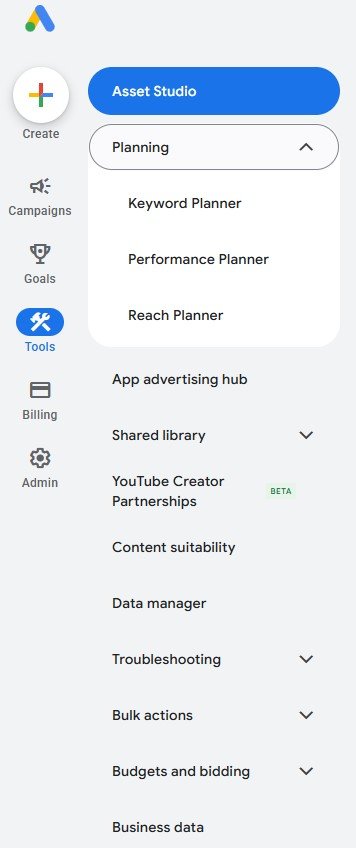
In the interface used for this walkthrough, the navigation path was:
Tools → Planning → Keyword Planner
Keyword Planner then presented two main starting options:
Discover new keywords
Use this when you want Google to generate new keyword ideas.
Get search volume and forecasts
Use this when you already have keywords that you want to enter or upload for historical metrics and advertising forecasts. Google describes Keyword Planner as supporting both keyword discovery and forecasting workflows.
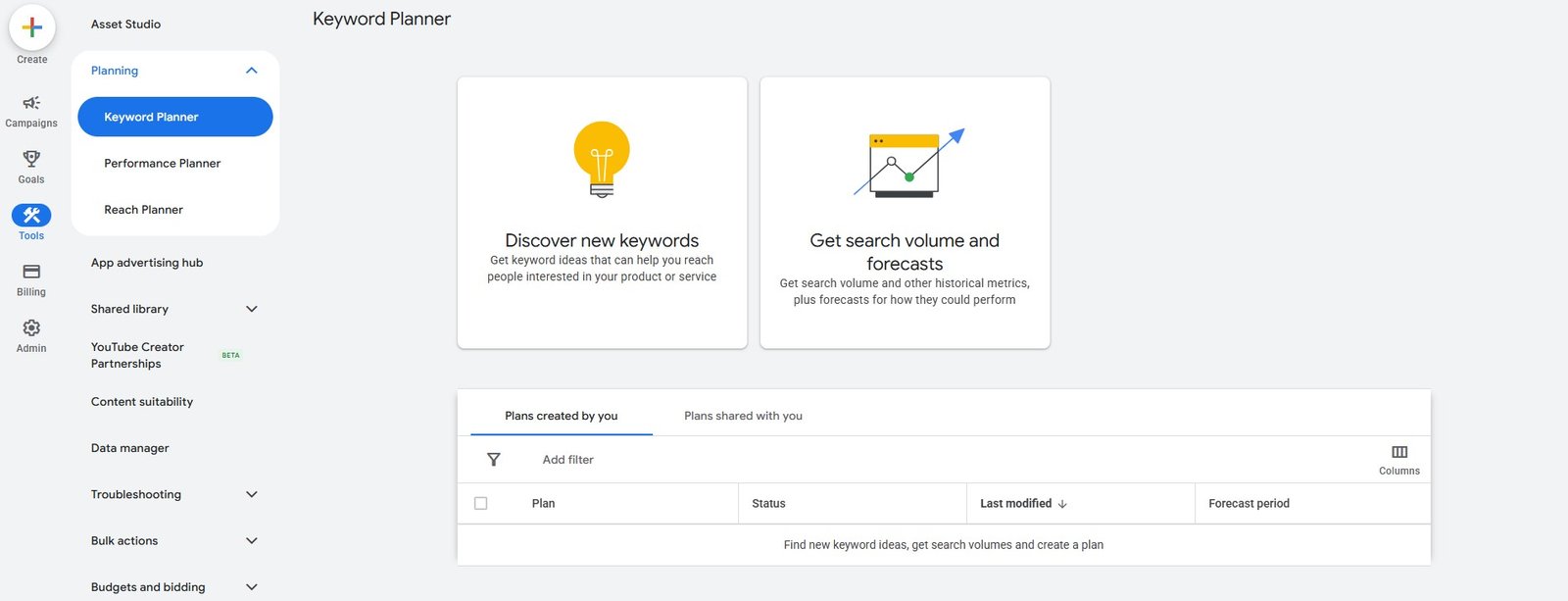
For this SEO tutorial, Discover new keywords is the main workflow.
Step 1: Check the Location, Language, Network, and Date Range
Before judging any keyword numbers, check the research settings.
Keyword Planner provides targeting controls for location and language, along with network and date settings. Google’s documentation also allows users to refine keyword research according to these targeting conditions.
In the account used for this walkthrough, the research was configured around settings such as:
- Location: India
- Language: English
- Network: Google or Google and search partners
- Date range: a selected historical period
These settings matter because the market you research should resemble the market you actually want to reach.
If your business serves users in India, for example, worldwide search estimates may be less useful than data targeted to India.
Google vs Google and search partners
The interface used in the walkthrough offered both:
- Google and search partners
For a straightforward SEO research starting point, using Google keeps the dataset focused on Google Search.
The broader network option includes additional search inventory, so the important thing is to know which setting you are comparing when reviewing keyword numbers.
Step 2: Start With Keywords
Open:
Discover new keywords → Start with keywords
You can begin with one relevant seed term or several closely related terms.
For the walkthrough, one of the main seeds was:
seo audit
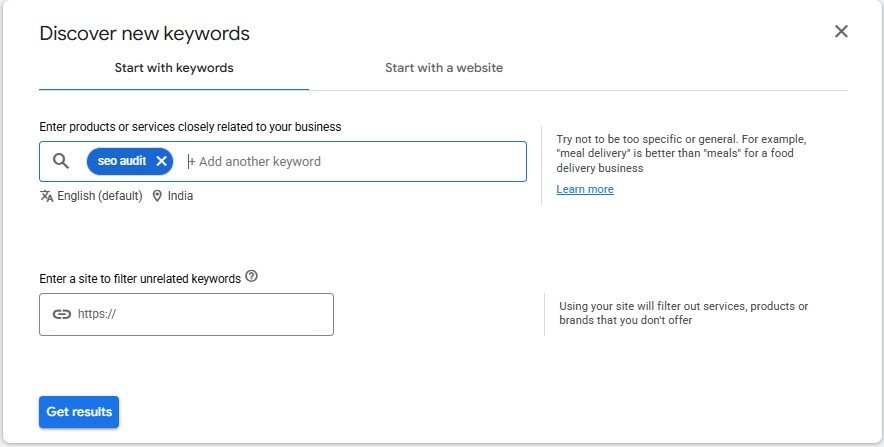
A broader test also used:
- seo audit
- free seo audit
- best seo audit
Google supports generating keyword ideas from keyword seeds, and its Keyword Ideas documentation shows that multiple seed terms can be supplied when requesting ideas.
After entering your seed keywords, click Get results.
You will usually receive far more suggestions than you should actually target.
That is expected.
At this point, treat the results as a list of possibilities, not a content plan.
Some suggestions may be highly relevant. Others may have the wrong intent, be too broad, relate to another brand, or simply not belong on your site.
Keyword discovery is the beginning of the research process, not the decision.
Step 3: Use “Start With a Website” to Find More Ideas
Keyword Planner also offers:
Discover new keywords → Start with a website
Google documents URL-based keyword generation as a way to produce ideas related to the content of a webpage.
In the account used for this walkthrough, the interface provided two choices:
- Use the entire site
- Use only this page
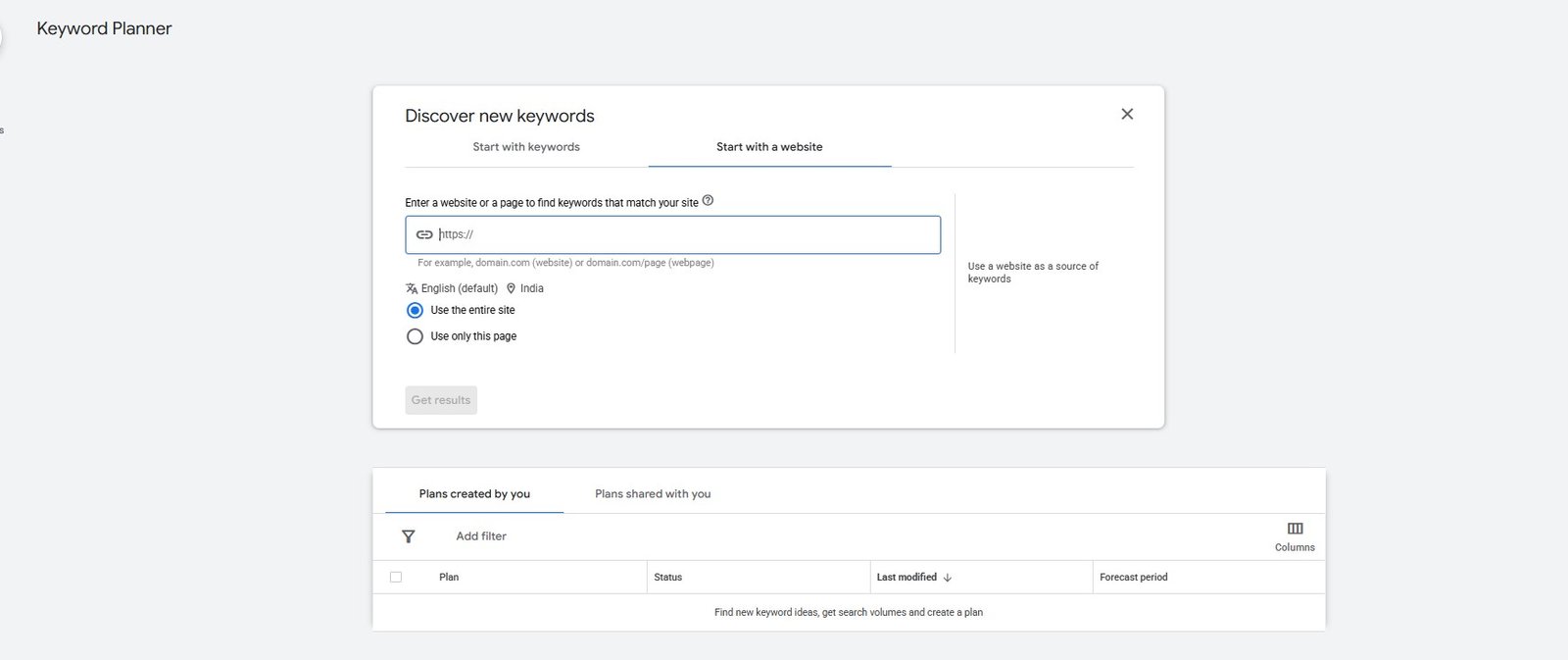
The page-level option can be useful when a large website covers several unrelated topics and you want ideas based on one specific page.
During the walkthrough, the public Semrush website was used as an example source. Keyword Planner then generated a list of related keyword ideas.
There is an important distinction here:
This is not a report of all the organic keywords that the website ranks for.
Keyword Planner is using the site’s content as an input for generating ideas.
So avoid thinking of this feature as:
“Enter a competitor and see every keyword they rank for.”
A better interpretation is:
“Use a relevant website or page to discover additional terminology and topics worth investigating.”
You still need to decide whether each resulting idea fits your own website and audience.
Step 4: Filter the Results Before Evaluating Them
A broad seed can generate hundreds or even thousands of ideas.
Do not try to evaluate every row manually.
Keyword Planner provides filters for fields including keyword text, Average Monthly Searches, Competition, bid ranges, and impression-share metrics.
The interface also includes Refine keywords, which can group suggestions by characteristics found in the result set.
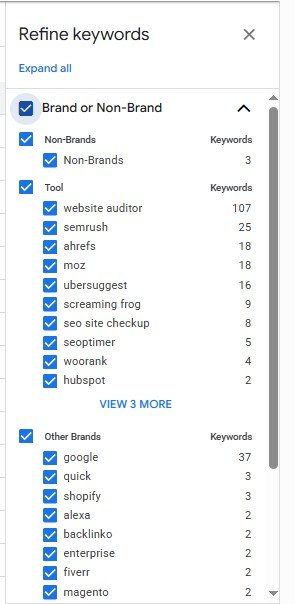
In the walkthrough, refinement groups included categories such as:
- Brand or Non-Brand;
- Service;
- Others.
Those specific groups came from that particular dataset and should not be treated as fixed categories that appear in every search.
Use filtering to remove noise
During one website-based test, a keyword-text filter was used to show suggestions containing:
ppc
That quickly narrowed a much larger list.
This is a useful way to work with Keyword Planner: remove obviously irrelevant ideas before spending time evaluating metrics.
What you should not do is filter for “Low Competition” and assume you have discovered easy SEO keywords.
The Competition column is measuring something else.
Step 5: Understand What the Metrics Actually Mean
This is where Keyword Planner becomes either useful or misleading for SEO.
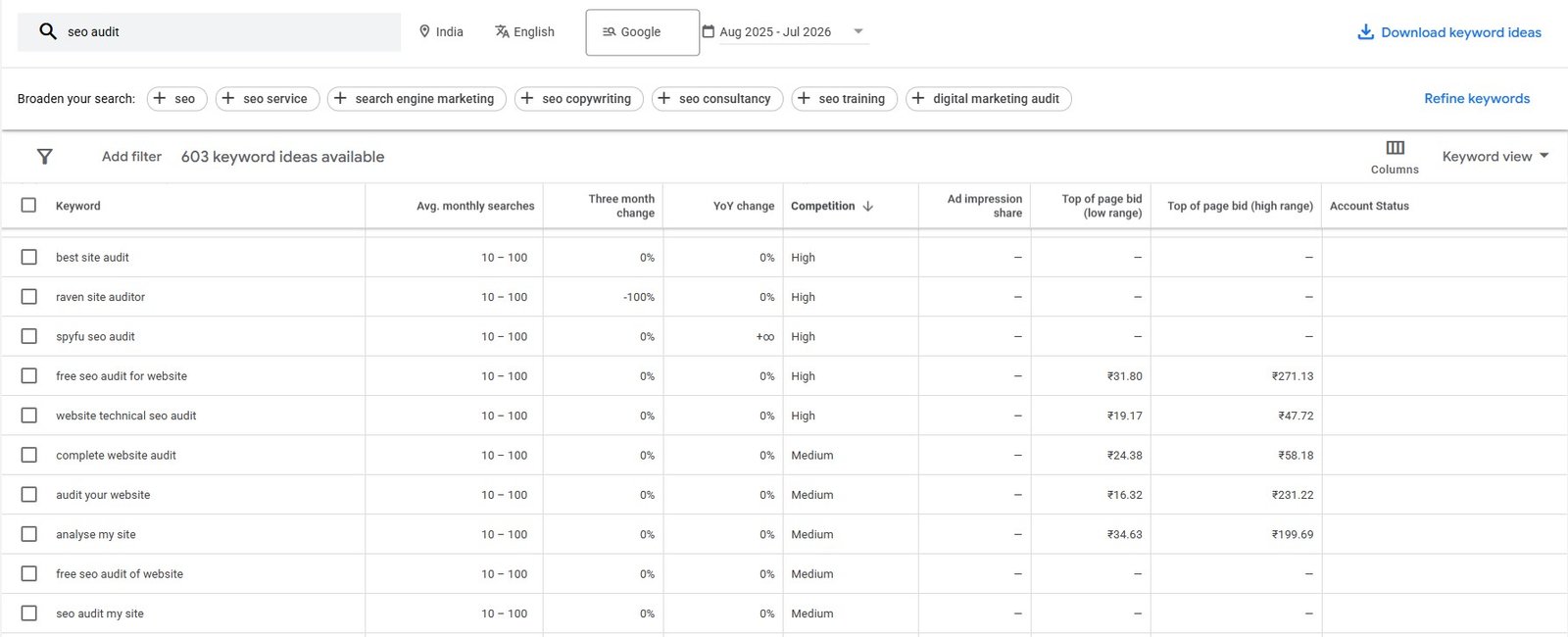
The data table combines search-demand information with metrics designed for Google Ads.
They should not all be interpreted the same way.
Average Monthly Searches
Google’s Ads API describes Average Monthly Searches as the approximate number of monthly searches, with the value normally averaged over the previous 12 months. Google also provides historical monthly search data within its keyword-planning systems.
The most important word is approximate.
Average Monthly Searches can help you compare relative demand, but it does not tell you how much organic traffic your page will receive.
A keyword showing 5,000 estimated monthly searches does not mean that:
- your page will receive 5,000 visits;
- 5,000 people will click an organic result;
- exactly 5,000 searches will occur next month.
Actual organic traffic depends on ranking position, SERP features, search intent, click behaviour, competition, seasonality, and other factors.
Use the number as an estimate of demand, not a traffic forecast.
Why the UI and CSV may show different-looking numbers
This walkthrough produced a useful account-specific observation.
In the Keyword Planner interface used for the research, Average Monthly Searches appeared as ranges such as:
10–100100–1K1K–10K
The downloaded CSV, however, contained more specific-looking Average Monthly Searches figures.
That behaviour should not be assumed for every Google Ads account.
More importantly, a more precise-looking exported number is still an estimate. Extra digits do not turn an estimated search-volume metric into an exact count.
The practical lesson is simple:
Use search volume to understand relative demand, not to predict traffic with false precision.
Three-month and year-over-year changes
The interface used for the walkthrough also displayed:
- Three month change
- YoY change
These fields can provide useful context when demand is rising, falling, or seasonal.
Keyword Planner also provides historical date controls, while Google’s historical Keyword Planning metrics are refreshed periodically rather than continuously.
For a seasonal topic, don’t look only at one average number. Check whether demand changes meaningfully over time.
Competition: not organic SEO difficulty
This is the easiest Keyword Planner metric to misuse.
The standard interface displays Competition as:
- Low
- Medium
- High
The account used for this walkthrough also exposed Competition (indexed value) on a 0–100 scale through additional filtering or exported data.
Google’s Keyword Planner historical metrics define this Competition data in terms of advertising competition and ad placement, not the difficulty of ranking in organic search results. Google’s API also exposes both a competition level and a numerical competition index.
So this advice would be wrong:
“Choose Low Competition keywords because they are easier to rank for.”
A keyword can have low advertiser competition while the organic results are dominated by strong, relevant pages.
Likewise, a high advertising Competition value does not automatically mean organic rankings are harder.
What should you check instead?
For an SEO decision, quickly inspect:
- the search intent;
- what types of pages currently rank;
- how relevant and useful those pages are;
- important SERP features;
- whether your site can realistically create a page that satisfies the query well.
That is enough for a beginner workflow. You do not need to turn every keyword into a detailed competitive-analysis project before making an initial decision.
Top of page bid: commercial context, not an SEO metric
Keyword Planner also shows:
- Top of page bid (low range)
- Top of page bid (high range)
Google describes these figures as historical advertising bid ranges associated with appearing among ads at the top of the search-results page.
For SEO, they can provide some commercial context.
If advertisers are willing to bid for a query, that can suggest commercial interest around the search.
But a higher bid does not prove:
- that the query converts better;
- that traffic will be profitable for your business;
- that the organic SERP is difficult;
- that the keyword deserves its own page.
Bid information is advertising data. Treat it as supporting context, not as an organic ranking signal.
Step 6: Decide Whether a Keyword Is Actually Worth Targeting
Finding a promising-looking phrase in Keyword Planner is not the end of the process.
Now you need to make an SEO decision.
For each useful-looking idea, consider five questions.
1. Is it relevant to your website?
Search volume cannot rescue a keyword that has little connection to what your site actually offers or explains.
A smaller, highly relevant topic may be far more useful than a broad high-volume query.
2. What does the searcher want?
Identify the likely intent.
For example, the searcher might want:
- an explanation;
- a tutorial;
- a tool;
- a comparison;
- a product or service;
- a specific website or brand.
The intent helps determine what kind of page should exist.
3. What type of page does Google currently reward?
Search the phrase and inspect the results.
If Google mainly shows product or service pages, a generic blog post may be the wrong format.
If the results are mainly tutorials, a short directory listing may not satisfy the searcher’s task.
Keyword Planner can help identify demand, but the live SERP helps reveal the expected page type.
4. Do you already have a page for the same intent?
Before creating something new, check your existing content.
If another page already serves the same searcher need, improving that page may be better than creating a competing URL.
5. Is the topic worth the work?
Use search demand as one consideration, not a rigid threshold.
A low-volume term may still be useful if it is highly relevant and valuable to your audience. A larger keyword may not deserve attention if the intent is wrong for your site.
Step 7: Group Related Keywords by Intent
Keyword Planner often produces different phrases that express essentially the same need.
For example:
- seo audit
- website seo audit
- site seo audit
Do not automatically create one page for every variation.
Instead ask:
Do these queries require meaningfully different answers or page types?
If the intent is essentially the same, one useful page can often cover the topic and its natural variations.
Separate pages make more sense when the searcher’s goal genuinely changes.
This is one reason a raw Keyword Planner export should not become your publishing calendar.
A Practical Google Keyword Planner SEO Workflow
For beginners, the process can stay simple:
- Enter one or several closely related seed keywords.
- Check the location, language, network, and date range.
- Generate keyword ideas.
- Remove obviously irrelevant suggestions.
- Use Average Monthly Searches to understand approximate demand.
- Do not treat Competition as organic SEO difficulty.
- Use bid data only as commercial context.
- Identify the intent behind promising queries.
- Inspect the live SERP.
- Check whether your site already has a page serving that intent.
- Group closely related same-intent keywords.
- Create or improve the page that best satisfies the searcher’s need.
That turns Keyword Planner from a list of numbers into a practical SEO research input.
Common Google Keyword Planner Mistakes
Treating Low Competition as easy SEO
Keyword Planner Competition refers to advertiser competition, not organic ranking difficulty.
Choosing keywords only because they have higher search volume
Demand matters, but relevance and intent determine whether a keyword is useful to your site.
Treating Average Monthly Searches as expected traffic
Historical search estimates do not tell you how many organic visits your page will receive. Google’s own historical metrics describe monthly-search values as approximate.
Turning every suggestion into a content idea
A suggestion is only a possible research lead. Some ideas will be irrelevant, redundant, navigational, or better suited to an existing page.
Ignoring targeting settings
Location, language, network, and time period affect the context of the dataset you are reviewing.
Creating separate pages for every keyword variation
Different phrasing does not necessarily mean different intent.
Treating website-based discovery as ranking data
URL-based discovery generates related ideas from website or page content. It is not a complete report of the site’s organic rankings.
Where Google Keyword Planner Is Limited for SEO
Keyword Planner is useful precisely because it provides keyword ideas and Google’s own historical keyword-planning data.
But it was designed around advertising workflows. Google itself presents it primarily as a tool for building and planning Search campaigns.
For SEO, that creates several limitations.
It does not provide organic keyword difficulty
Advertising Competition is not a replacement.
Search volume is approximate
Treat the numbers as directional estimates, not guaranteed future demand.
It does not determine search intent for you
You still need to inspect the live search results and understand what users are trying to accomplish.
It does not decide which page should target the query
That requires knowledge of your existing site structure and potential cannibalization.
It does not replace your own search-performance data
Keyword Planner helps identify possibilities. Your own performance data can show which queries and pages already receive impressions and clicks.
Its forecasts are advertising forecasts
Google’s forecasting tools are designed to estimate campaign performance, not future organic traffic.
Final Takeaway
Once Keyword Planner surfaces a useful-looking idea, open the live Google results before you start writing.
Check:
- what the searcher appears to want;
- which page types rank;
- whether the topic belongs on your site;
- whether you already have a relevant page;
- whether you should create something new or improve the existing page.
If you want to explore other options for this stage of research, browse the Keyword Research tools category or our Best Free SEO Tools guide.
Google Keyword Planner is most useful when you treat it as the beginning of an SEO decision, not the end of one.