SEO guide
How to Use the WooRank Extension for Quick SEO Website Analysis
A practical walkthrough of using the WooRank Chrome extension to inspect page-level SEO signals, interpret its score and identify issues worth investigating.
- WooRank
- SEO Extensions
- On-Page SEO
- SEO Tools
- SEO Analysis
The WooRank Chrome extension provides a quick way to inspect basic SEO signals on the webpage you are viewing without starting a full site audit.
We tested the current extension on the SEO Tools Directory homepage to see what appears before signing in and how useful the visible checks are in practice. The workflow is simple: open a page, run the review, inspect the findings, and decide what deserves further investigation.
What Is the WooRank Extension?
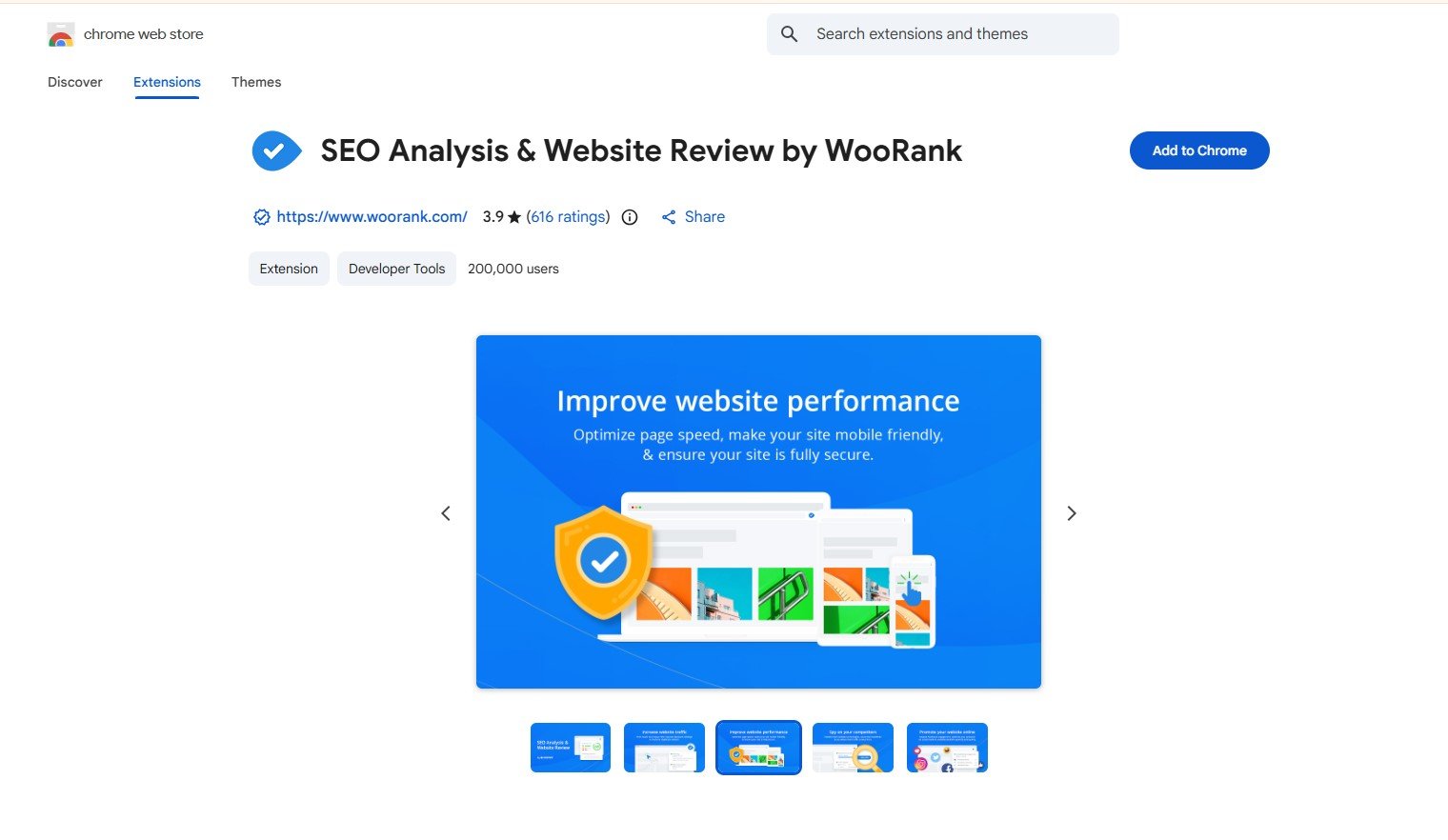
WooRank’s current Chrome extension is called SEO Analysis & Website Review by WooRank.
It analyzes the webpage currently open in your browser and presents SEO checks, status indicators, and recommendations.
This guide focuses specifically on using the extension for a quick page analysis. For a broader overview of the product, see the WooRank Tool page.
How to Install the WooRank Extension
The extension is available through the Chrome Web Store.
To install it:
- Open the official WooRank Chrome Web Store listing.
- Select Add to Chrome and confirm the installation.
- Open the webpage you want to inspect.
- Click the WooRank extension from your browser toolbar.
In our test, installation followed the normal Chrome extension process without requiring additional setup.
How to Run a Quick SEO Review
For our walkthrough, we opened the SEO Tools Directory homepage and launched WooRank from the browser toolbar.
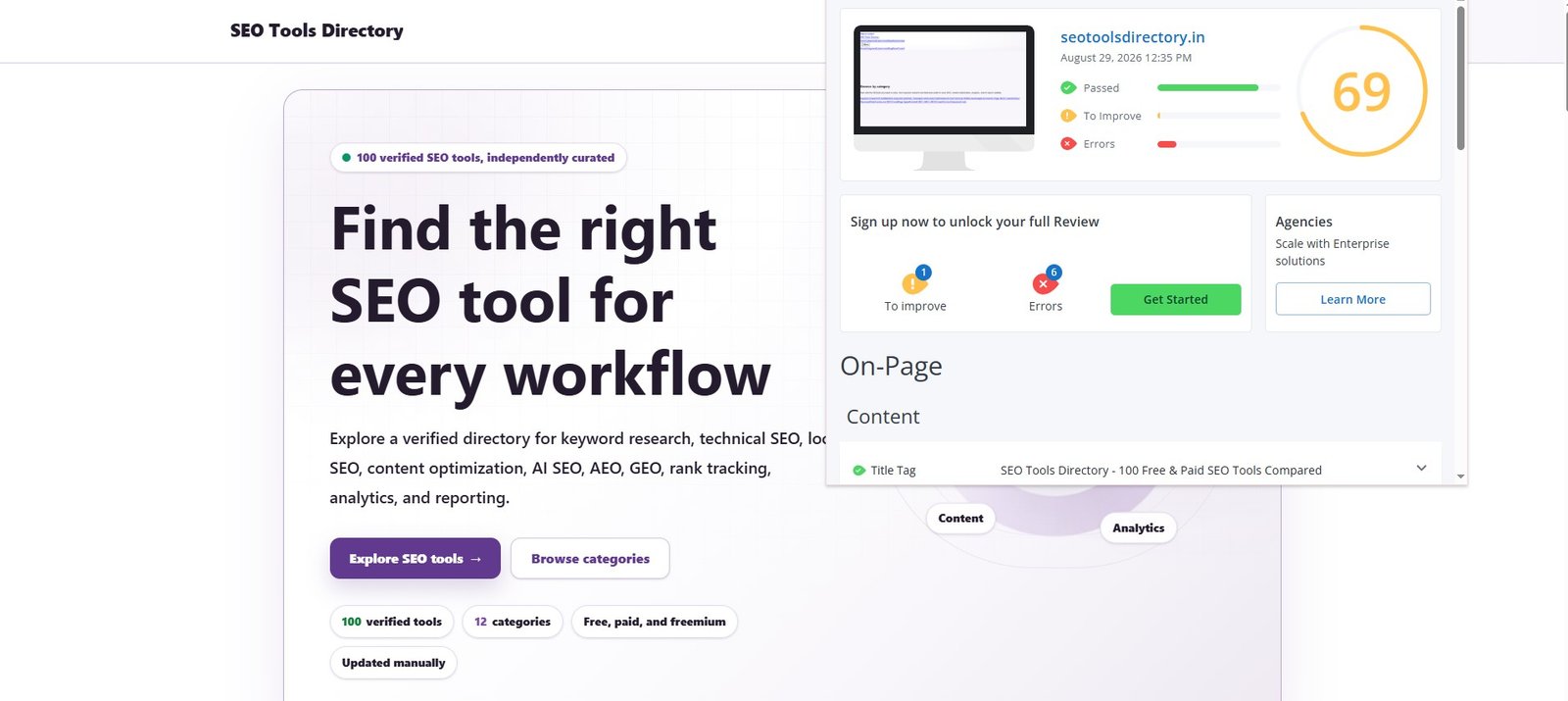
WooRank generated a review of the page without requiring us to sign in first.
The initial review displayed:
- an overall review score;
- Passed checks;
- To Improve checks;
- Errors;
- individual page-level SEO checks.
For this specific test, WooRank returned a score of 69 for the SEO Tools Directory homepage.
That number is simply the result from this particular review. It should not be treated as a benchmark or a general judgment of the site’s SEO quality.
The more useful part of the screen is the breakdown underneath the score. It gives you specific checks to inspect rather than relying on one summary number.
What Should You Check First?
For a quick page review, start with SEO elements that are easy to verify and directly connected to the page you are viewing.
You do not need to work through every warning immediately.
1. Check the Title Tag
WooRank detected the page’s title tag and displayed:
- the current title;
- character count;
- pixel measurement;
- title-related guidance.
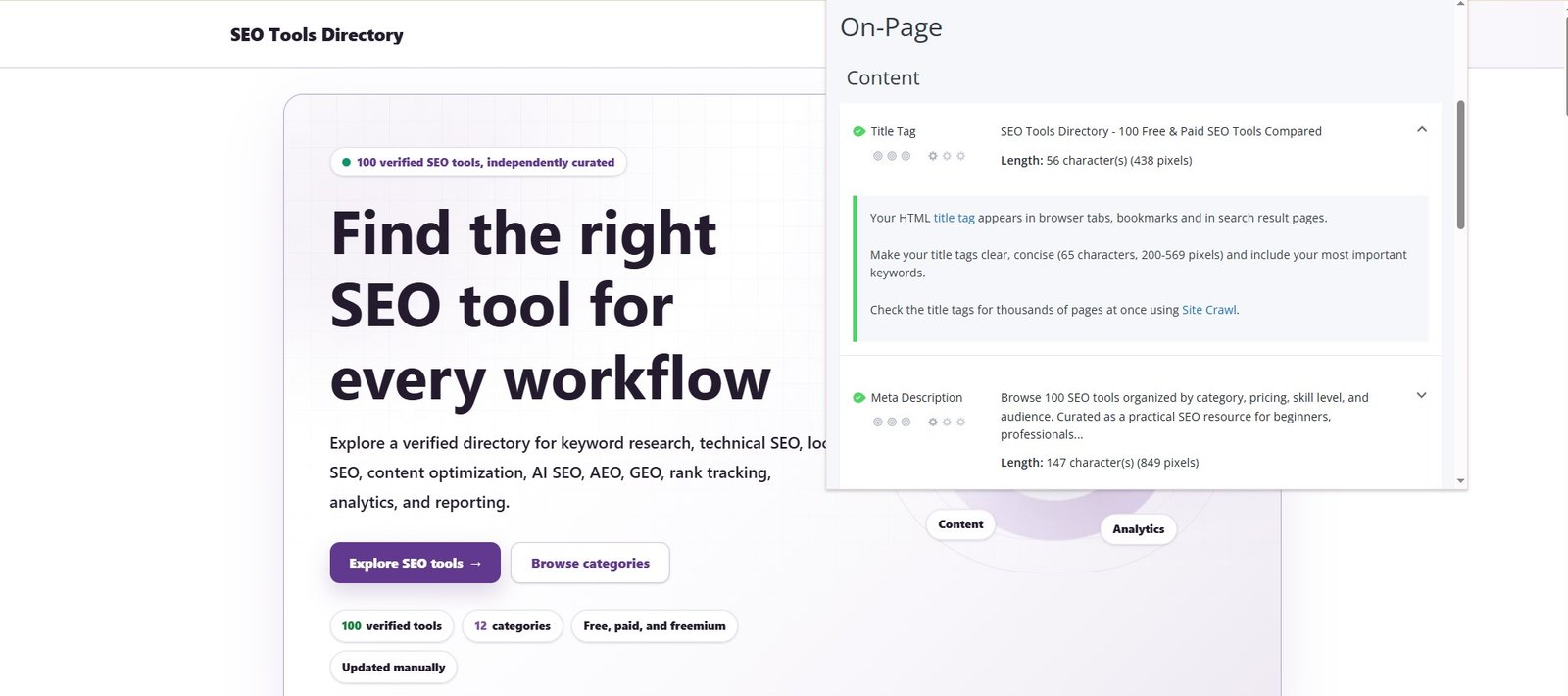
This gives you a quick way to confirm whether the page is using the title you expect and whether WooRank has identified anything worth investigating.
Before changing the title, ask:
- Does it accurately describe the page?
- Does it fit the page’s search intent?
- Is the main topic clear?
- Is there a genuine reason to change it?
WooRank’s character and pixel measurements provide useful context, but they should not replace SEO judgment.
A title does not become strategically strong simply because it falls within a recommended measurement.
2. Check the Meta Description
WooRank also detected the page’s meta description.
In our test, the extension displayed:
- the current description;
- character count;
- pixel measurement;
- related optimization guidance.
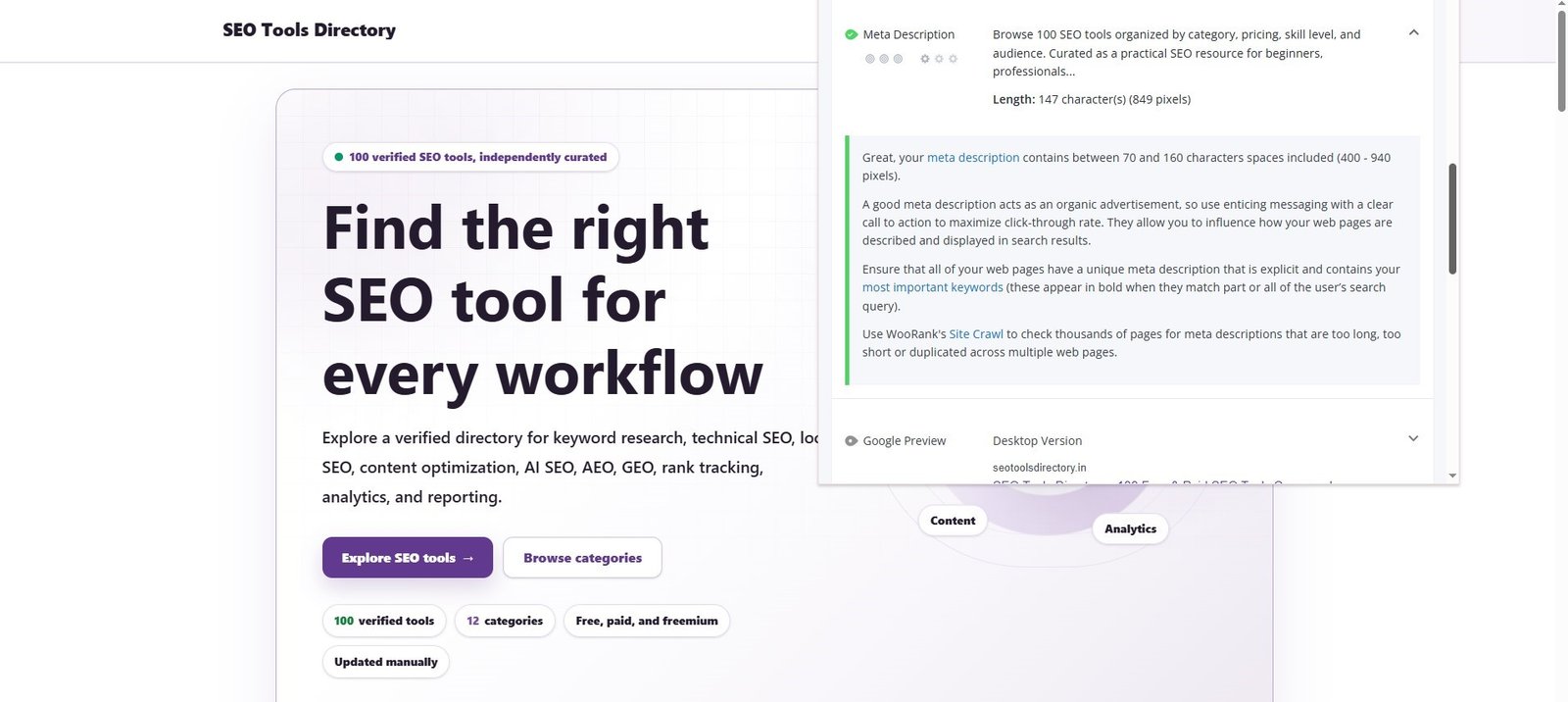
This is useful for quickly checking whether a meta description exists and whether the extension is detecting the expected text.
From there, consider whether the description accurately represents the page and gives searchers a clear reason to consider the result.
WooRank also displayed a Google-style preview, which can provide a quick visual reference for how the title and description appear together. Treat it as a preview rather than an exact prediction of what Google will show for every search.
What Happens When You Want the Full Review?
The initial review did not require us to create a WooRank account.
However, the extension did not expose the complete review without signup.
During our test, WooRank displayed:
“Sign up now to unlock your full Review.”
So the distinction is important:
In our test, WooRank allowed us to generate and inspect a limited page review without signing in, but prompted us to create an account to unlock the full review.
The limited review still gave us useful page-level checks, but readers should not assume that every WooRank analysis feature is available without an account.
This tutorial focuses on the quick browser-extension workflow rather than the broader WooRank platform.
How to Interpret WooRank’s Score and Warnings
A tool warning should not automatically become an SEO task.
A better process is:
Investigate → verify → prioritize
When WooRank flags something, ask:
- Is the issue relevant to this page?
- How serious is it?
- Does it affect users or search engines?
- Does the recommendation make sense for the page’s purpose and search intent?
- Does other evidence confirm the problem?
The same principle applies to the overall score.
WooRank’s score summarizes the checks its system evaluates. It does not tell you whether the page deserves to rank, whether it fully satisfies search intent, or which change would produce the greatest SEO benefit.
WooRank’s own documentation also makes clear that its SEO score does not directly determine search performance.
Use the score to orient your review, not as a target you need to maximize.
A Quick WooRank Extension Workflow
For a fast repeatable check:
- Open the page you want to inspect.
- Run the WooRank extension.
- Review the score and Passed / To Improve / Error indicators.
- Inspect important page-level checks such as the title and meta description.
- Verify meaningful warnings with the page itself or other SEO data.
- Prioritize changes based on actual impact rather than the number of warnings.
The goal is not to remove every warning. It is to identify the findings that deserve attention.
What the WooRank Extension Cannot Replace
The WooRank extension is useful for a quick page-level diagnostic, but it does not replace a complete SEO investigation.
Depending on the issue, you may still need site-wide crawling, Google Search Console, analytics, keyword and SERP research, or deeper technical analysis. A browser extension can help you spot signals on the page in front of you, but it cannot determine every problem or opportunity across an entire website.
If you want to explore other tools for page-level analysis, browse the On-Page SEO tools category.
Final Takeaway
The WooRank extension is useful when you want a fast second opinion on a webpage.
Run the review, inspect the visible SEO checks, and use the warnings to decide what deserves closer investigation. Do not optimize purely for the WooRank score.
A practical next step is to run the extension on one important page from your own site, review its title and meta description, and verify any significant warning before making changes.